

Level Up Your Money Game with Insights
Skip the last-second scrambles and start scoring consistent financial wins with Insights, Carver Bank’s built-in money-management sidekick. Think of it as your personal financial playbook - smart, simple, and ready whenever you are.
Where can I find Insights?
Insights is built directly into Carver Bank’s Online and Mobile Banking - no extra downloads or sign-ups needed. Once you log in, accessing Insights is quick and easy.
Using Insights in Mobile Banking
- Log In to Carver Mobile Banking app.
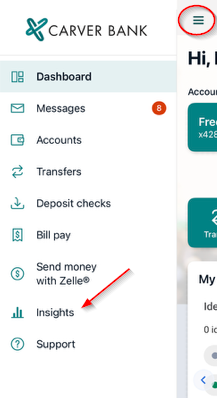
- Tap the menu icon (Three horizontal lines) in the top left corner.
- Select Insights from the menu options.
Using Insights in Online Banking
- Log in to Carver Online Banking.
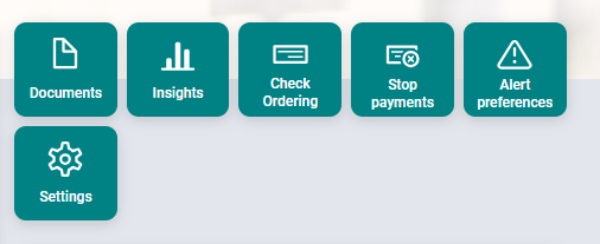
- Open any of your accounts.
- Selec the Insights tile located on the right side of the screen.
Insights Dashboard Overview
Get a clear, visual snaphot of your monthly spending.
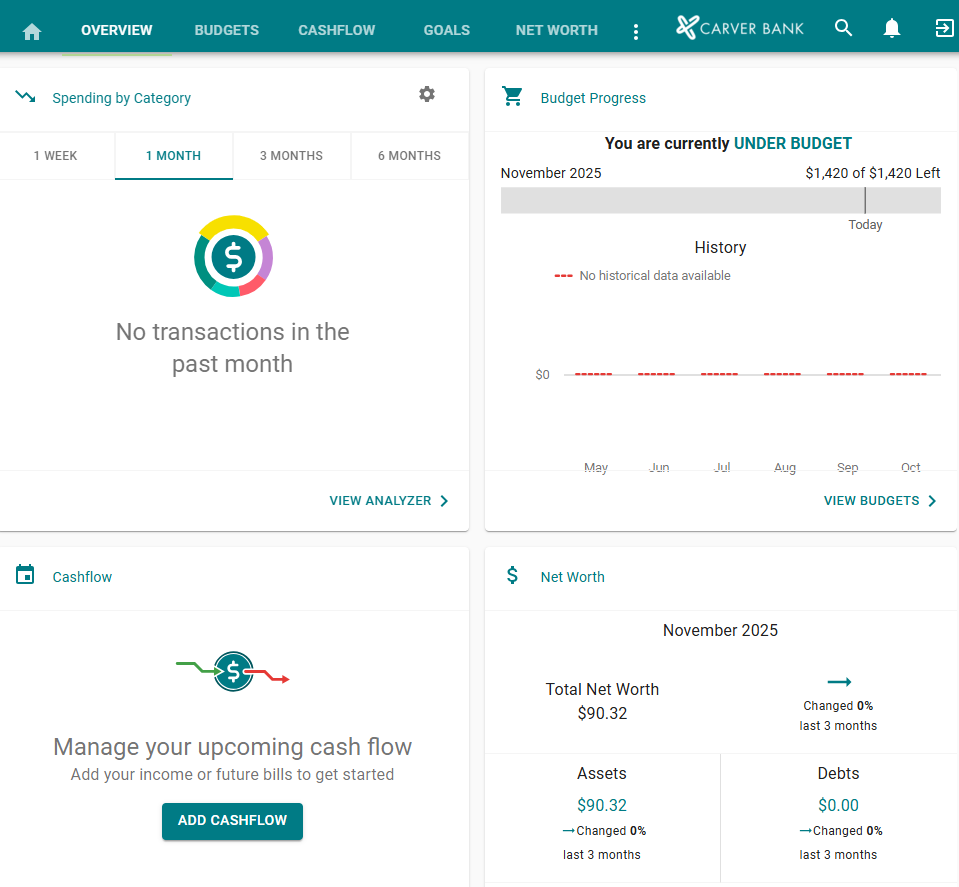
- The Spending wheel highlights your top spending ctategory so far this month.
- Click any part of the whell to explore other categories.
- Transactions are automatically assigned tags, which you can easily customize.
- When you select a transaction, you can:
*Edit tag
*Rename the transaction
*Create a budget for it
*Add it as a recurring item in your Cashflow Calendar
Spending Targets
Insights provides helpful guidance for new users when setting up budgets based on past spending patterns.
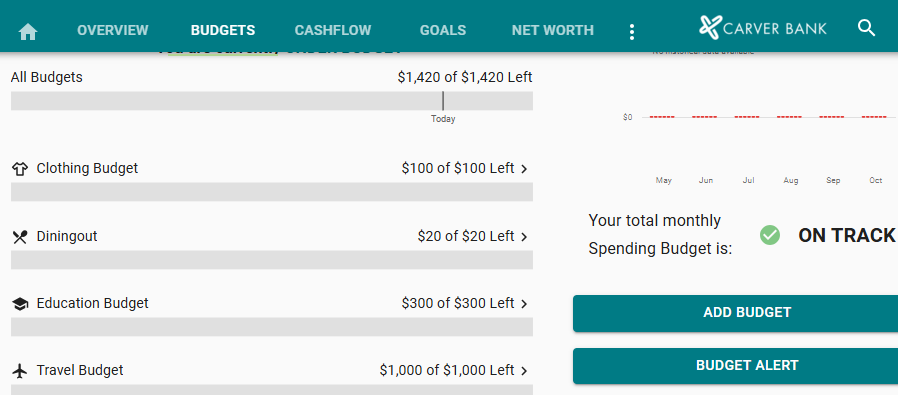
To manage your Spending Targets:
- Go to Budgets and select View Budgets.
- Choose the Spending Target you want to update.
- Click Edit Budget to make changes or delete it.
You can modify the name, amount, tags, and linked accounts for each Spending Target.
Cashflow Calendar
View your financial activity in a interactive calendar that brings your budget to life.
- Navigate to Cashflow.
- Click the + icon to add income or bills.
- Enter the required information and select Save.
Goals
Create financial goals - whether you're saving for something important or working to reduce debt.
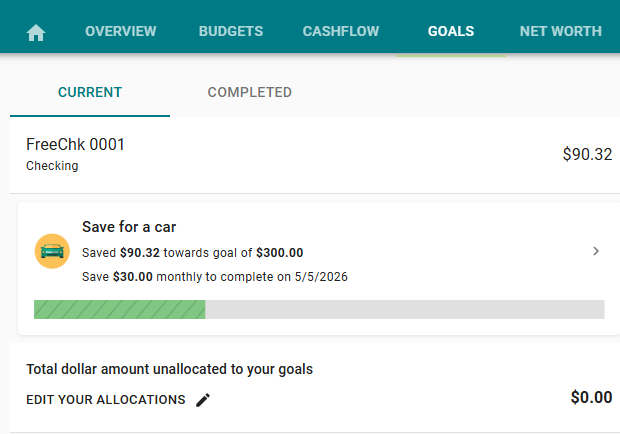
To set up a goal:
- Go to Goals and choose Add Goal.
- Select the type of goal you want to create.
- Enter the required details.
- Click Save.
Your Goal Summary will update automatically, showing your progress, estimated completion date, and recommended monthly contributions based on your account activity.
Add an Account (Net Worth)
Build a clearer understanding of your finances by adding your assets and liabilities to the Net Worth section - it's a simple way to see everything in one place.
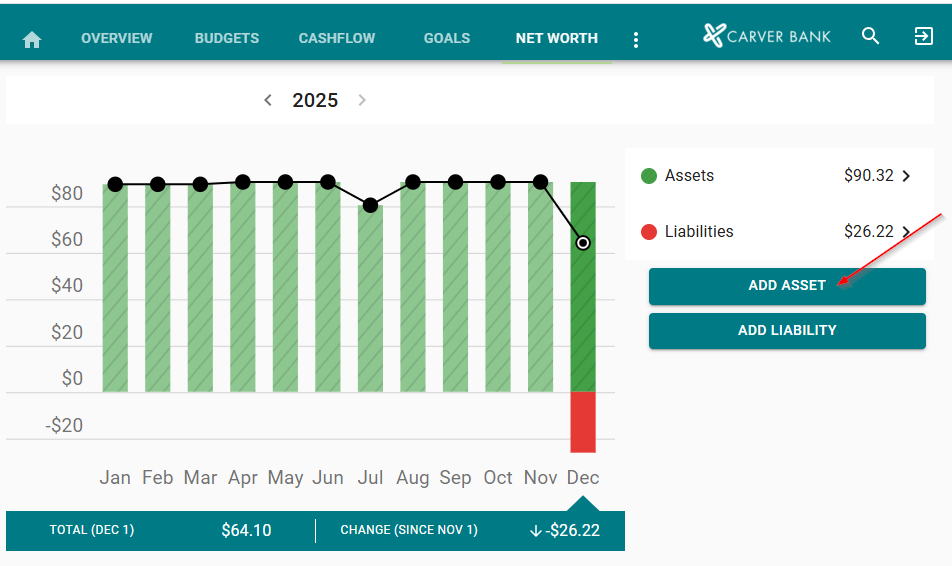
- Navigate to Net Worth.
- Select Add Asset or Add Liavility, depending on the type of account you want to include.
- From here, you can add your Carver Credit Card (Elan), any external credit cards, or other financial accounts.
Example: Adding your Carver Credit Card (Elan)
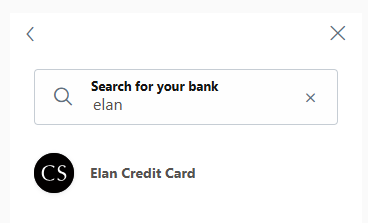
- Enter Elan into the search box, choose Elan Credit Card from the list.
2. Provide your Elan username and password to continue.
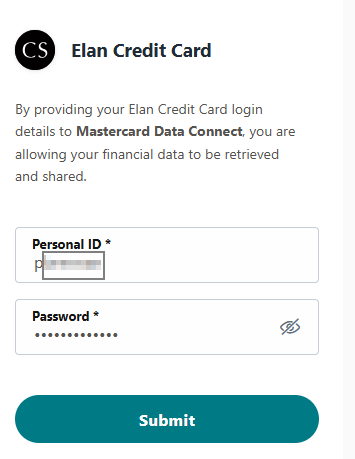
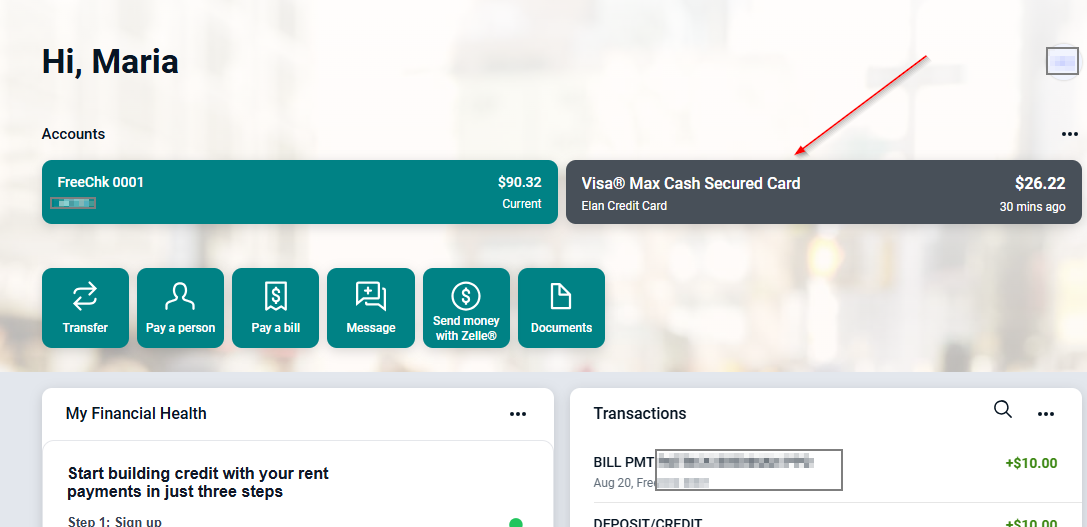
Once added, the account will appear on your main dashboard as well as in your Net Worth overview, giving you a complete, up-to-date picture of your financial standing.
Optional content area
This is the standard body copy size and weight. You can bold, italicize and align left, centered or right. Curabitur sodales ligula in libero. Ut eu diam.
Optional content area
This is the standard body copy size and weight. You can bold, italicize and align left, centered or right. Curabitur sodales ligula in libero. Ut eu diam.
Optional content area
This is the standard body copy size and weight. You can bold, italicize and align left, centered or right. Curabitur sodales ligula in libero. Ut eu diam.
Optional content area
This is the standard body copy size and weight. You can bold, italicize and align left, centered or right. Curabitur sodales ligula in libero. Ut eu diam.